

After upgrading to Calibre 9 and trying to sync my library to Android, my reading devices suddenly refused to open my library. The Calibre Sync app threw an error:
“no such column: isbn.”
Why the error happens and how to patch your Calibre library safely without touching your master database.
Intro (skip to the how-to using the TOC if you prefer)
I first discovered Calibre when my path toward radical self-sovereignty inspired me to break out of the Amazon Kindle ecosystem and reclaim my own library.
At the time, I had well over a decade of Kindle purchases tied to Amazon’s platform. I was an early Kindle adopter back in 2007. Even though I had purchased those books and they should have been “mine,” in reality they lived inside a locked system — protected by DRM, tied to specific devices, and ultimately controlled by a company that could change the rules at any time.
That does not sit well with me.
Ownership should mean possession and control, not a license that can vanish with a policy change.
So I became a pirate.
Using non-approved tools and plugins, I began removing the DRM from my purchased Kindle books and converting them into open formats I actually controlled — EPUBs, PDFs, and files that could live anywhere.
That experience permanently changed how I buy books.
Whenever possible, I now purchase DRM-free editions directly from the author or publisher. In many cases I even reach out to the author myself. Surprisingly often they are aware that the Kindle ecosystem is restrictive, but they simply don’t know how to publish and distribute their work in open digital formats.
We’ve all become victims of the “Easy Button.”
Amazon made publishing simple — but it also quietly centralized control of the entire ecosystem.
If an author I want to support doesn’t offer DRM-free copies, I still try to honor the work. Sometimes that means purchasing the book through Amazon — a platform I’d rather not support, but that isn’t the author’s fault — or donating directly to the author’s site.
And then… ahem… I make sure a DRM-free version finds its way into my library.
Because at the end of the day, my goal is simple: a personal library that I actually own.
The original jailbroken Amazon library became the seed of something much larger.
What began as a rescued Kindle collection has grown into a personal digital library filled with new DRM-free EPUBs from sources like Anna’s Archive and Z-Lib, thousands of medical and herbal research papers that support my apothecary studies, and even books I’ve written myself using Scrivener.
I originally learned Scrivener while helping authors produce clean, high-quality digital editions of their own work. Many brilliant writers simply aren’t technical, and a surprising amount of digital publishing is still poorly executed. Helping authors fix that has become something of a side skill for me.
And the library continues to grow weekly.
Today I maintain a personal Calibre library of thousands of books. It is beyond precious to me — years of curated PDFs, EPUBs, research texts, and esoteric material that I absolutely do not want to lose.
So I keep multiple full copies of the library.
Right now I have 4 separate Android reading devices, each with a different purpose, and each holding a complete mirror of my Windows Calibre library. 2 are color tablets for image-heavy books and PDFs, 1 is small and convenient for everyday reading, and all 4 serve as digital paper (I use Boox devices). Every device keeps its own local copy of the library on an SD card.
Why do I do it this way?
Simple: redundancy and independence.
• No network required
• No server required
• No dependency on cloud services
• If one device dies, nothing is lost
• If my computer dies, I still have four working libraries
Each device is just a drag-and-drop copy of the Windows Calibre library folder, stored on the SD card and opened with the Android app Calibre Sync.
This setup has worked beautifully for years.
Until today.
The Error That Suddenly Appeared
After copying a fresh version of my library from Calibre 9.3, I opened it on Android and immediately got this error:
no such column: isbn
The library would not load.
After fixing that one, a second error appeared:
no such column: lccn
And then another:
no such column: flags
Something had clearly changed in the Calibre database structure.
What Happened
In Calibre 9, the developer removed several columns from the books table in the library database:
isbnlccnflags
Calibre itself no longer uses those fields.
However, some third-party tools — including Calibre Sync — still expect those columns to exist.
Tries to load the new library it throws an error because the column is gone.
Fortunately the fix is simple.
We just add those columns back as empty placeholders.
Calibre ignores them, but the Android app stops crashing.
The Fix (Step-by-Step)
You will need a small free tool:
DB Browser for SQLite
Install it.
Fix: Calibre 9 “No Such Column” Error in Calibre Sync
Step 1 — Create a Working Copy of Your Calibre Library
Do not modify your original Calibre library.
Before doing anything else, close Calibre completely.
Locate your Calibre library folder on your computer.
Now create a full copy of this folder on your Desktop.
We will work entirely from this copied folder.
Do not touch the original Calibre library again during this process.
Your original library remains the safe master copy.
Step 2 — Open the Database from the Desktop Copy
Launch DB Browser for SQLite.
Click: Open Database
Navigate to the copy of your Calibre library on the Desktop, not the original library.
Select: Desktop > Calibre Library COPY > metadata.db
Open the file: metadata.db
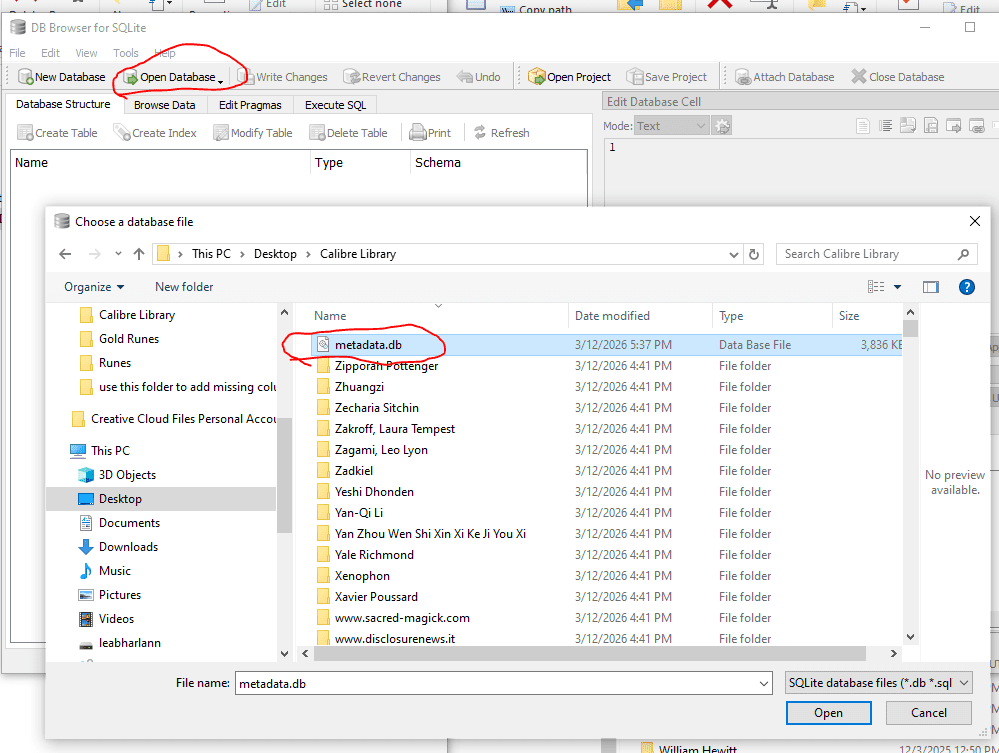
You should now see the database loaded inside DB Browser.
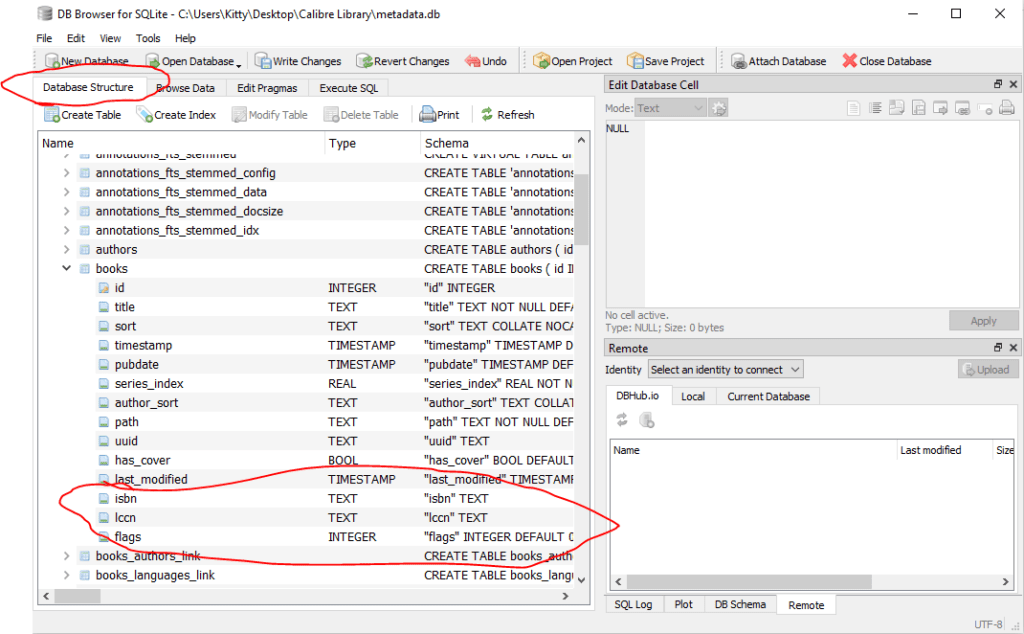
you can confirm the missing columns by checking the table “books” – you will not see columns isbn, lccn, or flags
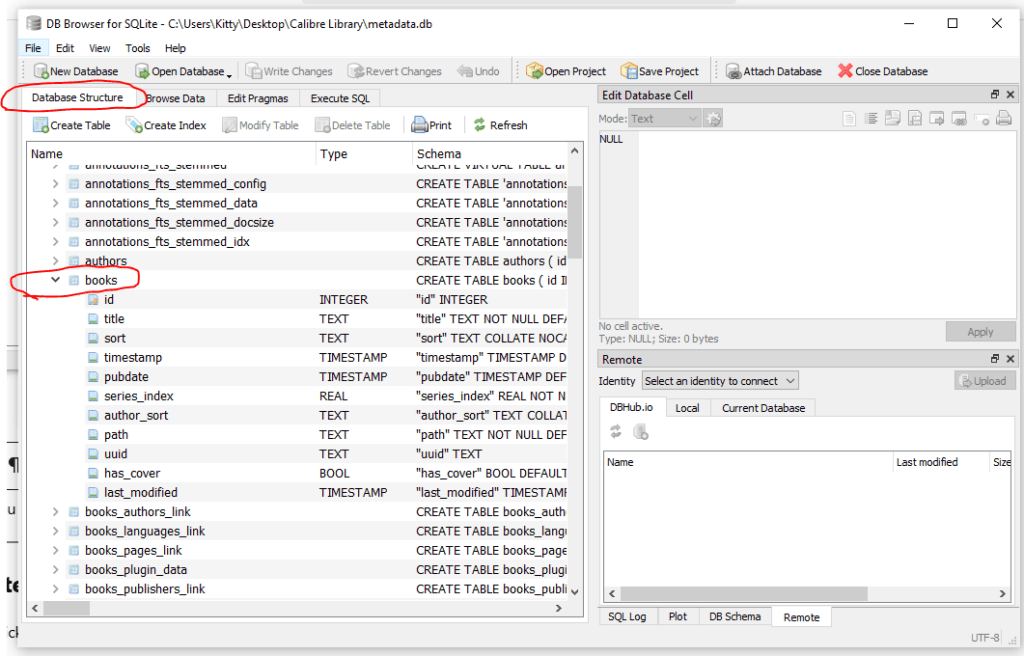
Step 3 — Open the SQL Editor
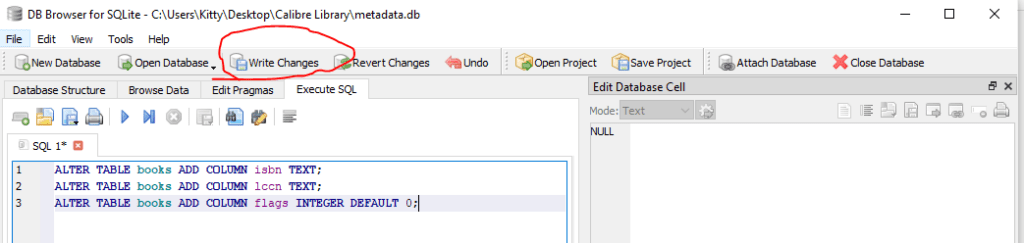
Click the tab: Execute SQL
Step 4 — Add the Missing Columns
copy paste the following Commands into the SQL window
ALTER TABLE books ADD COLUMN isbn TEXT;
ALTER TABLE books ADD COLUMN lccn TEXT;
ALTER TABLE books ADD COLUMN flags INTEGER DEFAULT 0;
Click Run.
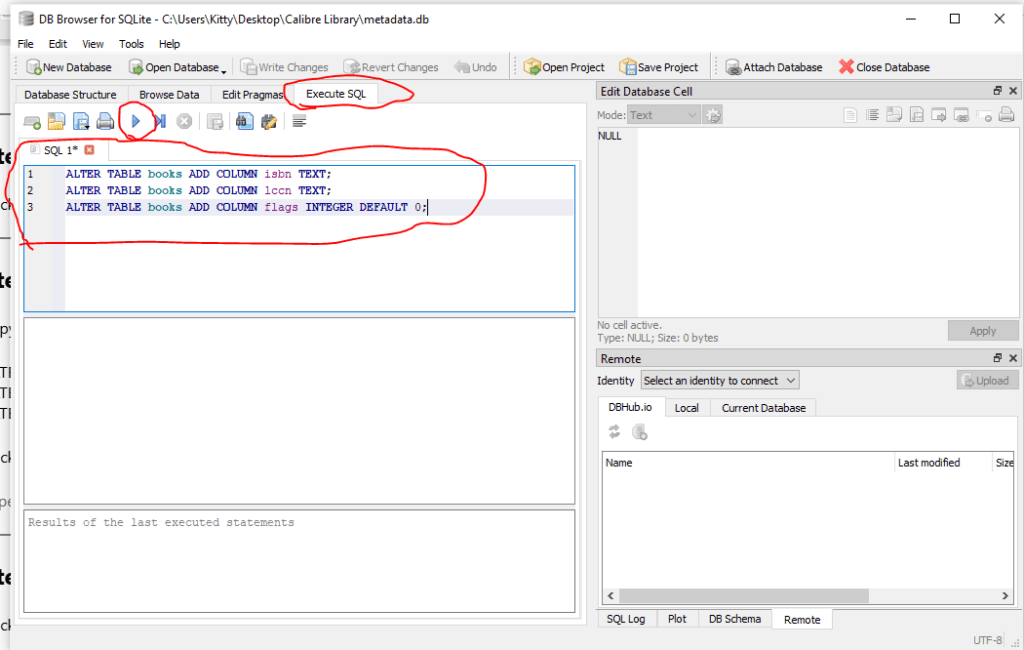
Success!

Step 5 — Save the Changes
Click: Write Changes
Confirm the new columns are in the books table by checking database structure again
You can now close the program.
You now have a patched copy of your Calibre library on your Desktop that will work with the Calibre Sync Android app.
Step 6 — Copy the updated Library to Your Android Device
Use this patched Desktop copy of the library when syncing to your Android device.
Copy the updated Calibre Library COPY folder to your Android device or SD card, replacing the previous library.
Why This Works
In Calibre 9, several old columns were removed from the books table: <pre> isbn lccn flags </pre>
Some third-party apps (including Calibre Sync) still expect these columns to exist.
By adding them back as empty placeholder columns in a separate copy of the database, we restore compatibility with the Android app without modifying the master Calibre library on Windows.
A Quick Nod to the Old Skool Interwebs

Documenting this fix reminds me of my favorite days of internet forums.
You’d run into some obscure technical problem, dig through threads from other nerds who had hit the same issue, and piece together a solution.
Then you’d post the fix so the next person could find it.
No algorithmic feeds.
No engagement farming.
Just people documenting solutions for each other.
So if you ran into the same Calibre Sync error — hopefully this post saved you a few hours.
Adding these keywords for SEO:
calibre sync error
calibre 9 metadata.db fix
no such column isbn calibre
calibre sync android error